Parenting Support Services map instruction guide
The parenting services map has been developed to assists technical uses and public in locating parenting services that may be available around. It is also a tool to assist with planning and future growth.
Layout
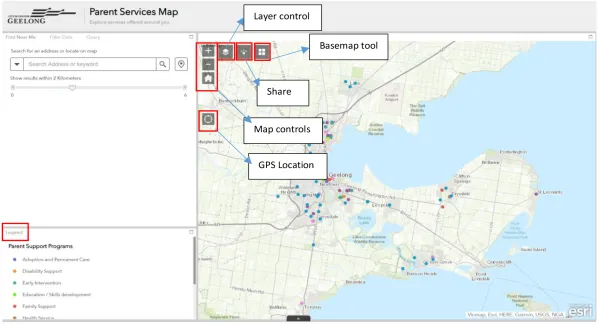
Using the Find Near Me widget
The Find Near Me widget allows you to find features within a buffer of a defined address or location and view detailed information about those features.
Click the Find Near Me widget icon to open it.
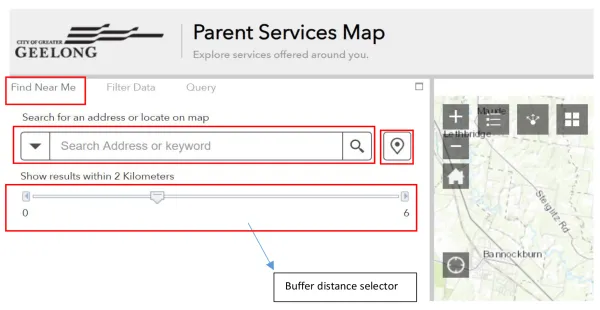
- Define the area you want to buffer by adjusting the slider to the desired kilometres.
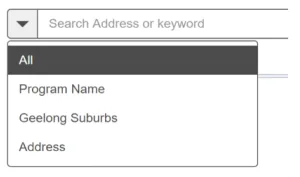
- Search for an address in the search bar or enable locate on map button to click a location on the map to define the location to be buffered. You can also define your search criteria using the drop down list.
- Features found within the defined buffer for each layer are listed.
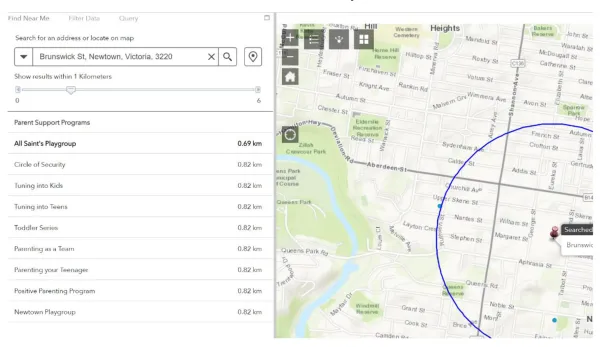
Click a layer in the list of results and click the desired feature.
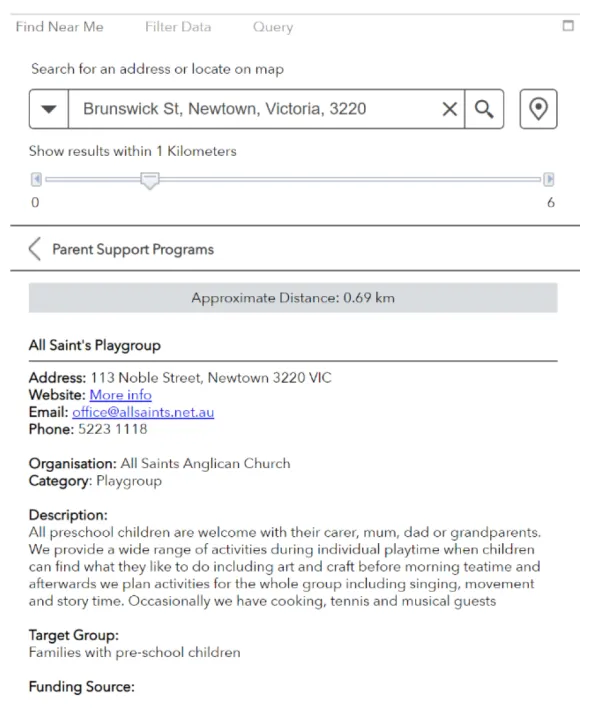
Information about the feature is shown on the Information tab.
Filter data widget
The Filter widget allows you to limit the visibility of features in a layer. Only the features that meet the expression criteria will be visible in the map.
Using the filter data widget
You can apply multiple filters simultaneously or apply an individual filter to the map.
Click the filter widget icon to open it.
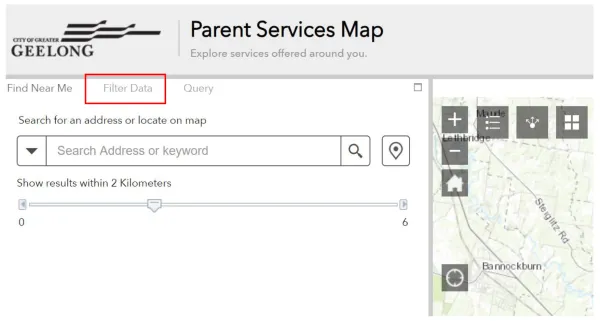
- Click the filter you specify to limit features on the map.
Notice that the toggle button turns on after the filter is applied. Click the filter button again to remove the filtering from the map. You can also turn the toggle button on and off to apply or remove the filter.
Choose a value from the drop down box to filter by Organisation, Category or suburb.
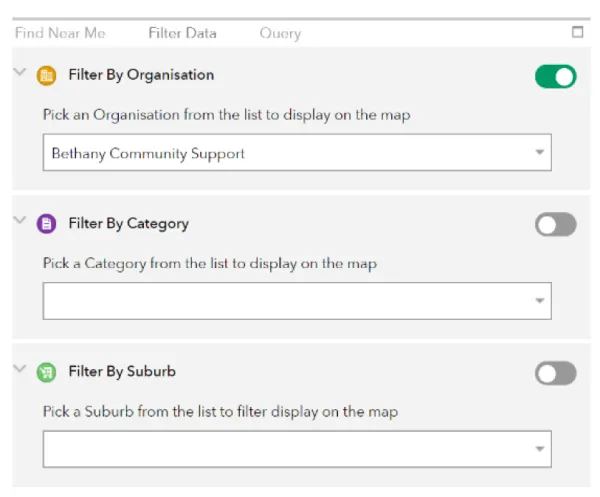
Example
To filter all Family support offered by Bethany Community Support in Corio, you can apply one or all the filters.
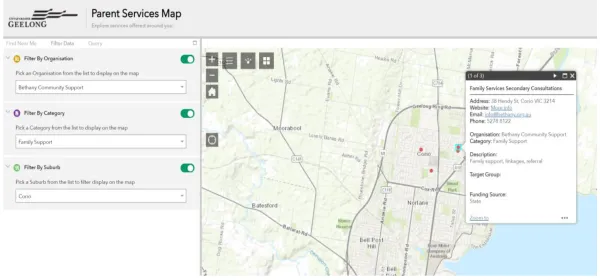
Please be sure to turn off the filters if you using other Widgets as the results will be affected the filter that may be already applied.
Query widget
The Query widget allows you find results based on any keywords.
Click the Query widget icon to open it.
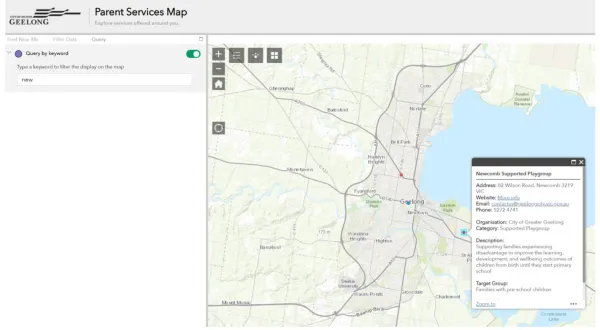
Suppose the keyword 'new' is used to query all the data. Only data with the word matching new is shown on the map.
View list of results and export to Excel
The map results can be viewed as a list for ease of use and can also be exported to a CSV format.
- Use the pull up button on the bottom of the map.

- The list of all sites shown on the map will be listed below.
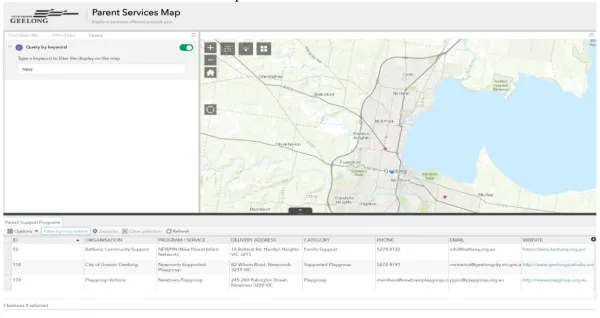
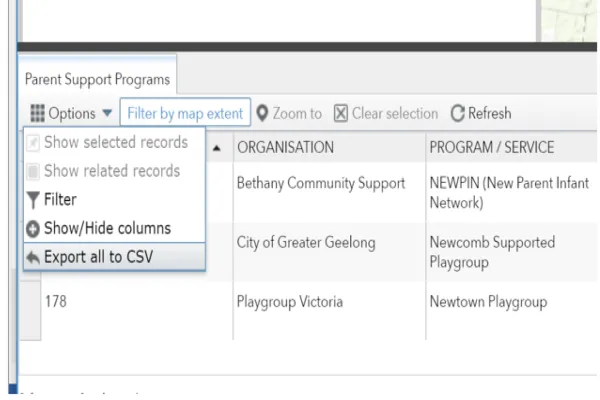
- To export your results chose Export all to CSV from the options dropdown.
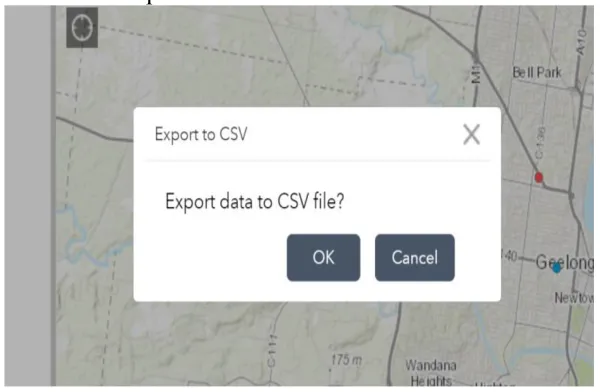
- Click ok to export to CSV and the file will be downloaded.
- The CSV file can be opened in Excel.